

Add a new device to the tailnet
You add a new device to your Organization’s tailnet yourself: install Tailscale, enter your Organization’s login server in it, sign in with your Lazurio account and wait until the Organization Admin tells you the device is approved. Until then, do not expect the Organization’s Environments to open from it. Each device (phone, tablet, computer) is added and approved separately. On iPhone, Android and Mac the whole procedure is done by clicking in the app. Windows needs one line in PowerShell; the pictures show every click, and you can also hand that step to your agent.
If the device is already in the tailnet and you only cannot connect, follow Reach an Environment through Tailscale.
Before you start
Section titled “Before you start”Have the address of your Organization’s login server ready. Lazurio runs
its tailnets on Headscale, a
self-hosted server that the Tailscale app signs in to instead of Tailscale’s
own server. The address usually looks like
https://headscale.<organization>.lazurio.io. Your Organization Admin
gives you the exact address. Do not guess it:
with a different address you sign in to someone else’s network, or not at all.
Also decide what the device should be called: <login>-<device>, for example
jannovak-iphone or jannovak-macbook. You do not set the name in the app;
you only tell it to your Organization Admin (see Device name).
Add the device
Section titled “Add the device”The steps follow the official Tailscale and Headscale documentation as of 3 November 2026. We went through the Android steps the same day in the real Tailscale app, version 1.104.5, and the pictures come from it. The iPhone and Android apps change their menus between versions. If you cannot find an item under the name given here, look for a similar option for a custom or alternate server.
iPhone and iPad
Section titled “iPhone and iPad”- Install Tailscale from the App Store. It works on iOS 15 or later.
- Open it, choose Get Started and allow the VPN configuration to be added. Do not sign in yet.
- Tap the profile icon at the top right. Settings open.
- If you are not signed in to another tailnet in Tailscale, tap Log in. Otherwise, tap your signed-in account.
- Open the menu at the top right and choose Use a custom coordination server.
- Enter your Organization’s login server address and tap Log in.
- The Lazurio sign-in opens. Sign in with your Lazurio account and return to the Tailscale app.
We do not have our own iPhone pictures yet. Tailscale describes the screens on Configure Tailscale clients to use a custom control server.
Android
Section titled “Android”-
Install Tailscale from Google Play. It works on Android 8.0 or later.
-
Open it. Android asks whether Tailscale may set up a VPN connection. Tap OK.
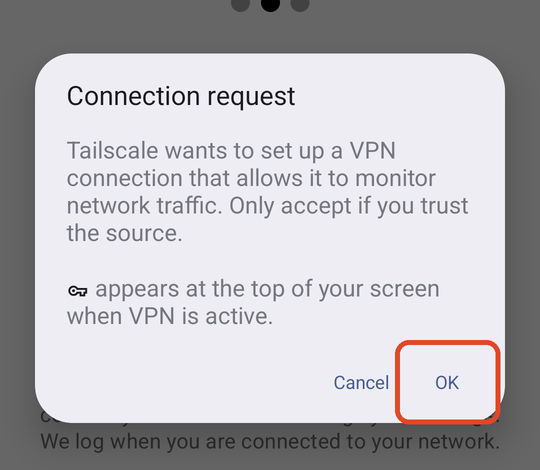
Allow the VPN connection. This does not connect you to any network yet. -
Do not tap the large Log in button: it leads to Tailscale’s own server. Tap the gear at the top right.
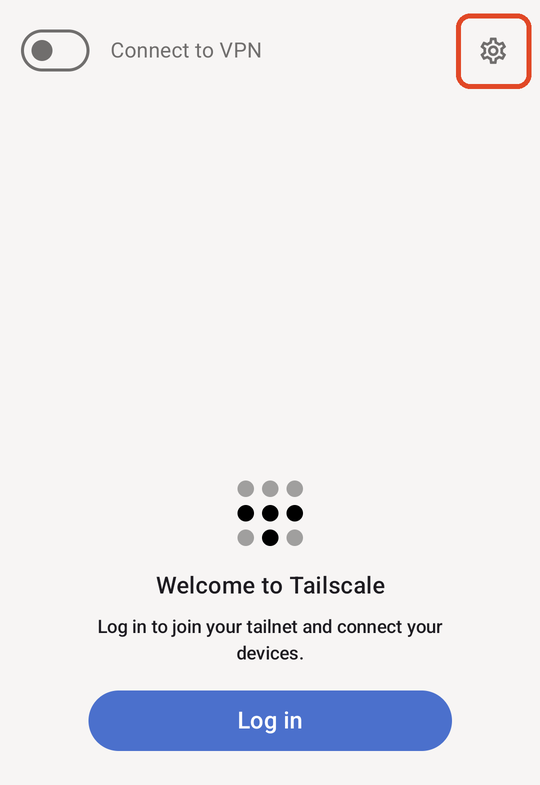
Open settings with the gear, not with the Log in button. -
In settings, tap Accounts.
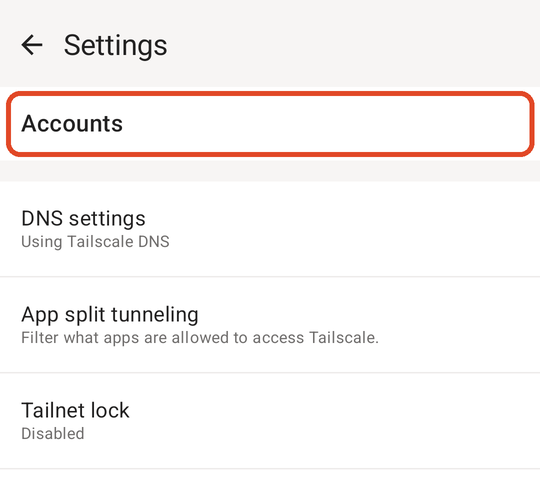
-
Tap the three dots at the top right and choose Use an alternate server.
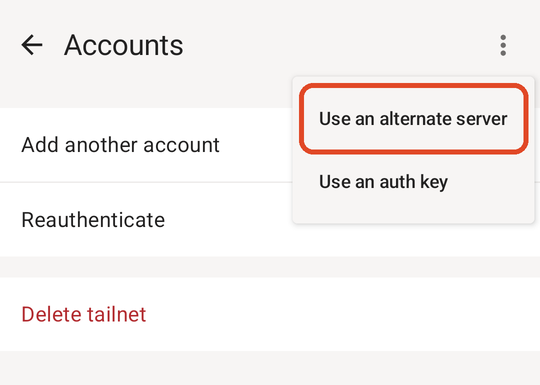
-
In Custom control server URL, enter your Organization’s login server address and tap Add account.
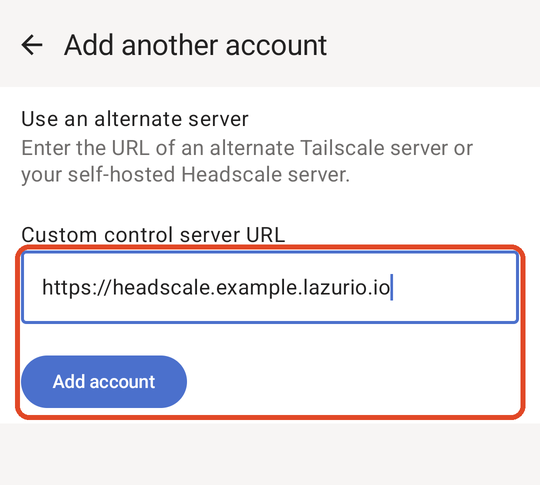
The picture shows an example address. Enter your Organization's address. -
The Lazurio sign-in opens. Sign in with your Lazurio account and return to the Tailscale app.
Tailscale for macOS needs macOS Ventura 13.0 or later.
- Install Tailscale: the Standalone variant from Tailscale’s website (which Tailscale recommends), or the Mac App Store variant.
- Start the app, go through the onboarding and allow the VPN configuration. Do not sign in yet.
- Hold the Option key (⌥) and click the Tailscale icon in the menu bar. Point at Debug and, under Custom Login Server, choose Add Account….
- Enter your Organization’s login server address and click Add Account.
- The Lazurio sign-in opens in your browser. Sign in with your Lazurio account.
If you are already signed in to another tailnet in Tailscale, Tailscale also documents a second way: Tailscale icon in the menu bar → Settings → Accounts tab → down arrow at the bottom left → enter the address → Add account.
Steps 3 and 4 are described in the Headscale documentation; we do not have our own Mac pictures yet.
Windows
Section titled “Windows”The Tailscale app for Windows cannot take a custom login server in its window (Tailscale’s documentation says so). On Windows you therefore enter the server with one line in Windows PowerShell. It is the only command in this guide. The pictures below show every click, and if you prefer, let your agent do it.
-
Install Tailscale for Windows (Windows 10 or later) and finish the installer. Do not sign in in the Tailscale app: its Log in button leads to Tailscale’s own server, not to your Organization.
-
Click Start, type PowerShell and open Windows PowerShell. You do not need Run as administrator.
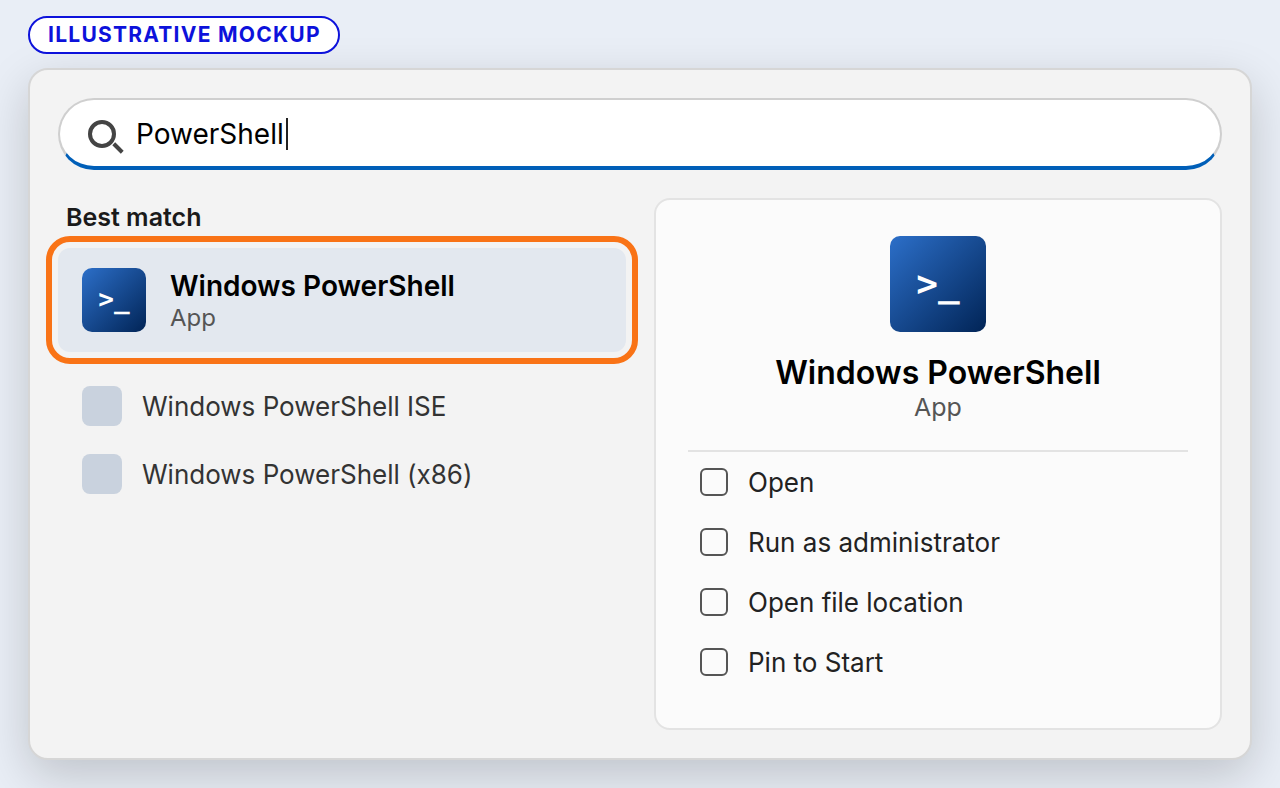
Illustrative mockup, not a screenshot. Open Windows PowerShell with a normal click. -
Copy this whole line. Put your Organization’s login server in place of
<login server>, for examplehttps://headscale.example.lazurio.io:Terminal window & "C:\Program Files\Tailscale\tailscale.exe" login --login-server=<login server>Paste it into the PowerShell window with Ctrl+V or a right click and press Enter. Keep the
&and the quotation marks at the start: without the&, PowerShell only prints the quoted path instead of running Tailscale.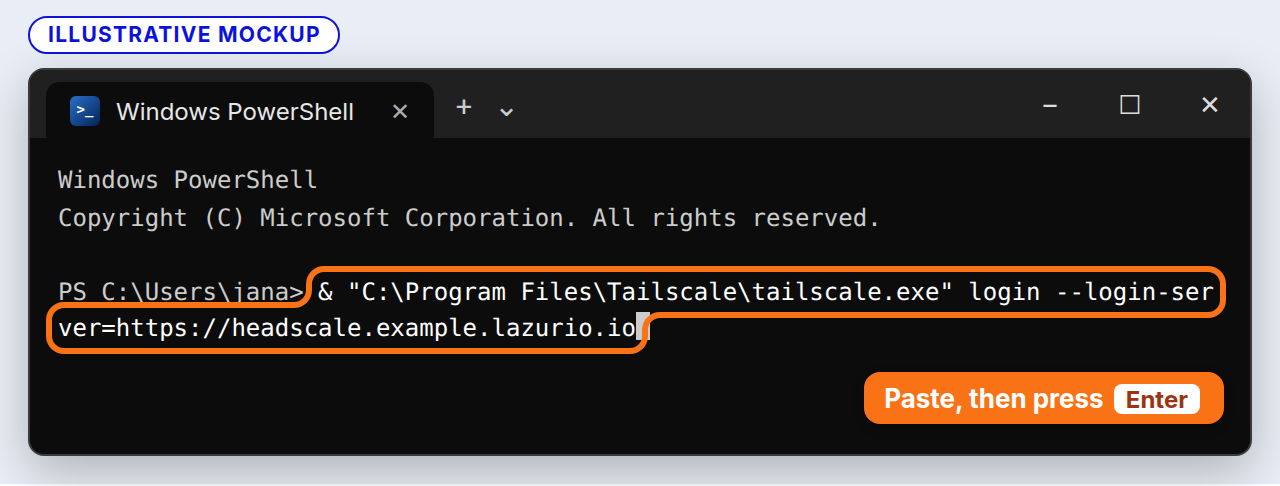
Illustrative mockup with the example address. The line may wrap in the window; that is fine. -
The window writes To authenticate, visit: and an address that starts with your login server. Hold Ctrl and click the address. If nothing opens, select the whole address with the mouse, right-click it to copy it, and paste it into your browser’s address bar. Do not press Ctrl+C in the window: without a selection it stops the command.
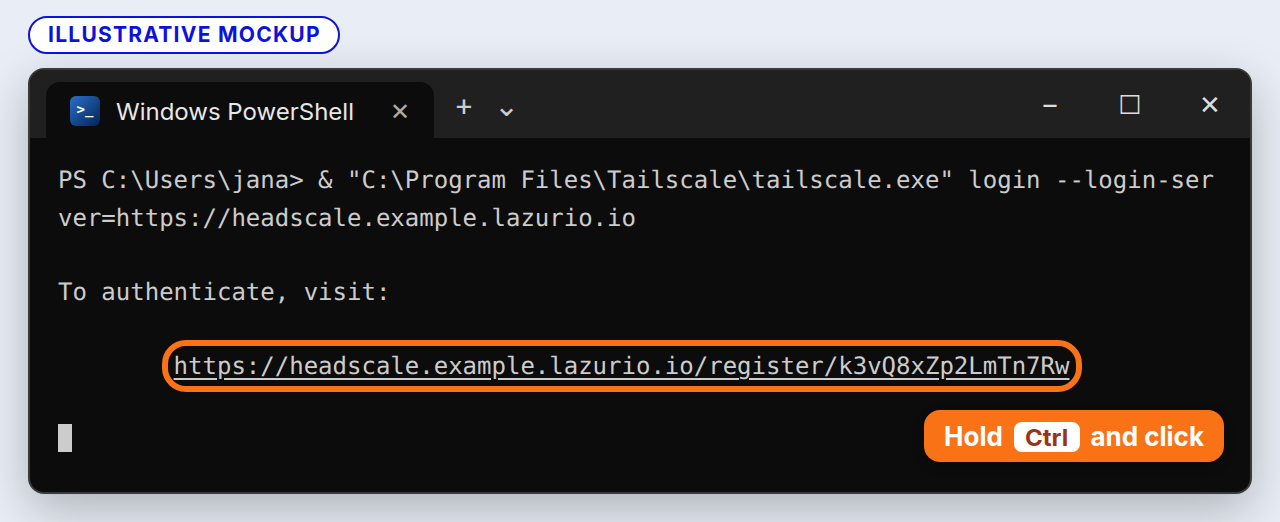
Illustrative mockup. Your address is different every time. -
The Lazurio sign-in opens in your browser. Sign in with your Lazurio account and close the browser tab when it is done. Leave the PowerShell window open meanwhile.
-
Back in PowerShell, the window writes Success. You can close it. The device is now in your Organization’s tailnet and waits for approval (see What happens next).
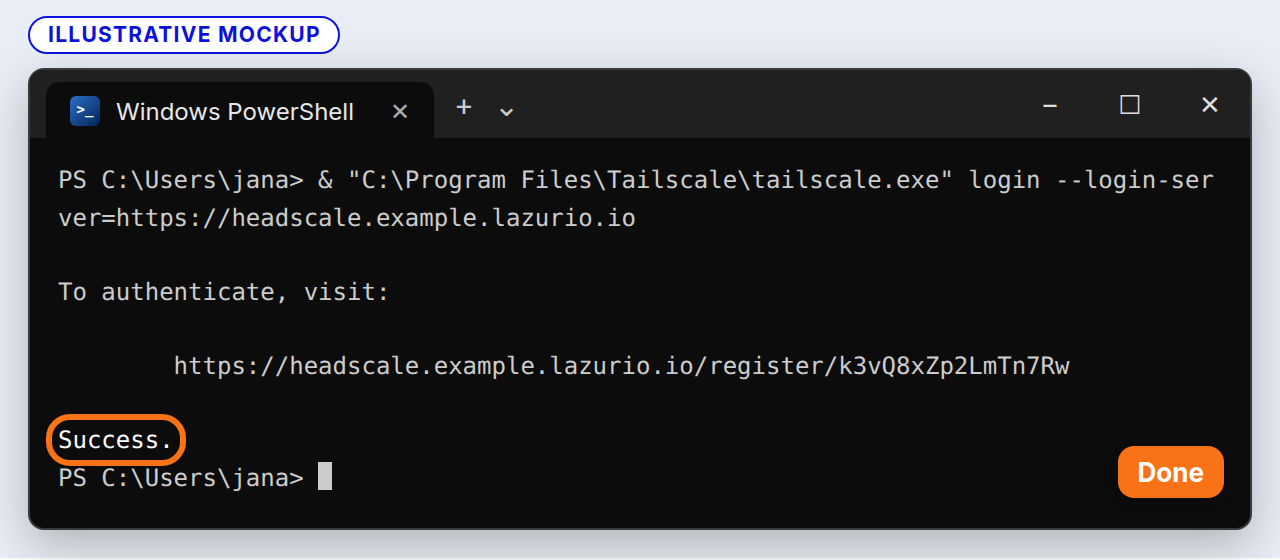
Illustrative mockup. Success. means the sign-in is finished, not that the device is approved.
If PowerShell answers in red that the term is not recognized, Tailscale is not
installed in its usual folder: install it (step 1) and paste the line again.
If it only repeats the quoted path, the & at the start is missing.
These pictures are illustrative mockups drawn from Microsoft’s and Tailscale’s documentation and from the messages in Tailscale’s source; we have not taken them on a real Windows computer yet.
Let your agent do it
Section titled “Let your agent do it”If you work with an agent on this Windows computer (ChatGPT Desktop, Codex or
Claude), copy the prompt below into a new chat and put your Organization’s
login server in place of <login server>. The agent runs the line, reads the
address and tells you where to click. Signing in stays with you, and the
agent cannot approve the device.
Connect this Windows computer to my Organization's tailnet in Tailscale. The Organization's login server is <login server>.
1. Check that Tailscale is installed: C:\Program Files\Tailscale\tailscale.exe exists. If it does not, stop and tell me to install it from https://tailscale.com/download/windows. Do not install it yourself.2. In PowerShell run exactly this line, without administrator rights, so that you can read its output while it keeps waiting (for example in a separate window or in the background):   & "C:\Program Files\Tailscale\tailscale.exe" login --login-server=<login server>3. The output says "To authenticate, visit:" and an address. Give me that address as a clickable link and tell me in one or two sentences: open it, sign in with my Lazurio account, then come back to this chat. Do not open, fill in or confirm the sign-in yourself, and never ask me for a password or a code.4. When the output says "Success.", tell me in plain words that this computer is now in the tailnet of that login server and waits for the Organization Admin's approval. Read this computer's name in the tailnet (tailscale status --json, Self.HostName) and tell me to send it to my Organization Admin together with my login.
Rules: do not use an auth key, do not change the Windows registry or Tailscale's policies, leave other Tailscale accounts on this computer as they are, do not turn Tailscale off, and do not try to approve the device. If anything fails, tell me what the window said and stop.
Device name
Section titled “Device name”Tailscale names a device after the system: a computer after its name, a phone usually only after its manufacturer or model. The Tailscale app for Android has no setting for the name (checked in version 1.104.5), and Tailscale’s documentation does not describe a clickable name setting for the other systems either. So do not rename anything on the device; tell your Organization Admin the name you want. It helps them recognise which device is yours.
The name has the form <login>-<device>:
<login>is your login in lowercase. If your Lazurio account is linked to GitHub, it is your GitHub login. If it is not, use the label your Organization Admin gives you.<device>is a short, stable label such asiphone,ipad,pixel,android,macbookorwindows. Choose it once and use the same one in every tailnet. If you have two devices of the same kind, tell them apart permanently, for examplemacbook-airandmacbook-pro.- Only lowercase letters, digits and hyphens, without the Organization’s name.
Do not rename a device that is already approved just to follow this rule. The name is part of its approval, and an Organization Admin has to prepare the change. The name is only a label and grants no access.
What happens next
Section titled “What happens next”After you sign in, the device is registered in the tailnet and waits for approval by the Organization Admin. Under Lazurio’s rules, the Organization Admin approves each device for their Organization, and approval for one Organization does not open another. How the approval is carried out today is described in For the Organization Admin. This guide does not promise that a device which is not approved yet is blocked: the Organization’s network rules decide that, and the Organization Admin and the network operator manage them.
You are waiting when the Organization’s tailnet is in Tailscale’s account list and the app may show that it is connected, but the addresses of the Organization’s Environments do not open.
You are approved when the Organization Admin tells you so and the addresses of the Environments you have access to open. Check with Tailscale on and the Organization’s tailnet chosen (see Reach an Environment through Tailscale).
If nothing happens
Section titled “If nothing happens”- Sign-in ended with an error. Your Lazurio account may not be allowed into this Organization’s tailnet yet, or you entered a different server address. Check the address and write to your Organization Admin.
- The tailnet is missing from the account list. The sign-in did not finish. Go through the steps again from entering the server.
- The device is still waiting. Your Organization Admin may not know about it. Write to them as described in the next section.
- The device appeared in the tailnet under another name or with a
-1suffix. That is normal. Do not delete anything or sign in again yourself; write to your Organization Admin.
Ask your Organization Admin for approval
Section titled “Ask your Organization Admin for approval”Write to your Organization Admin and include:
- your login;
- the device name you want (
<login>-<device>); - the kind of device (iPhone, Android, Mac, Windows);
- the login server address you entered;
- when you signed in.
The Organization Admin approves a device only when they know you are the one asking. Write to them through a channel they recognise you by.
For the Organization Admin
Section titled “For the Organization Admin”The Organization Admin approves each device. An approval is a relationship between a specific device, its owner’s account and your Organization. On a tailnet that serves more than one Organization, each Organization approves separately.
How it works today (as of 5 November 2026). The Organization Admin approves the exact device and the Environments it may reach through the managed procedure of the network operator, who runs the server of the tailnet. That change is reviewed and deployed before the device can reach anything new. Several waiting devices can go in one batch, so approval can take longer than a few minutes. Dashboard does not list waiting devices yet: agree with the person directly which device is theirs, and ask your network operator how to submit the approval.
Target. Lazurio’s access model (decision 0192) describes a registered
device that reaches nothing until the Organization Admin approves it in Dashboard, with a
service on the Conglomerate Host that applies the approval within tens of
seconds. That is being built (issue-2026-11-03-002). This guide does not
claim that it already runs for your Organization.
Before approving, check:
- that the device’s owner is asking for it, through a channel you trust;
- that the device in the tailnet belongs to that person’s account;
- the device name. A device arrives with the name its system gave it, and the person cannot change it by clicking in the Tailscale app. Agree with them which device it is, and tell them the name you approve it under. This guide does not yet describe how to set the name during approval;
- that it is a fresh registration the person actually made. Do not approve a device you do not recognise.
A person with Windows enters the login server with one PowerShell line, or
lets their agent do it (see Windows). A clickable way for Windows
is still a gap (issue-2026-11-03-003).
When a person loses a device or stops using it, have its approval removed the same way it was granted. The rules for who may approve and what an approved device can reach change through a reviewed change to the Organization’s configuration, not by approving a single device.