
Tips for working
When an agent needs to work on the web
Section titled “When an agent needs to work on the web”With Browser Use, an agent can open a website, read a page, click and fill forms. Ask for it when the task needs work on the site, not just a list of links. Your AI tool provides this feature, not Lazurio.
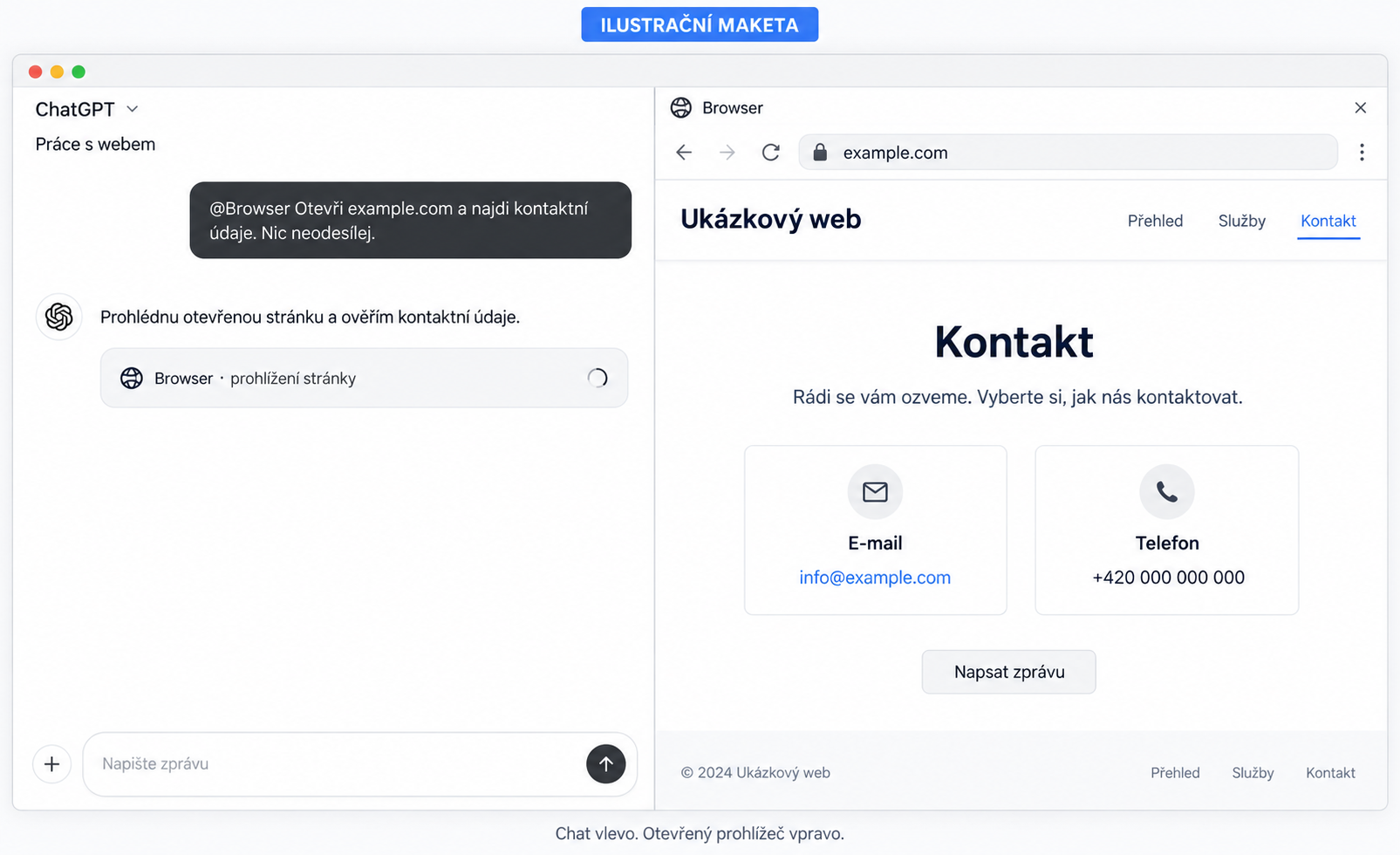
Get started in ChatGPT
Section titled “Get started in ChatGPT”In the ChatGPT desktop app, chat and the built-in browser can appear side by side.
Open it with New tab and a URL, or with Cmd + T on Mac
(Ctrl + T on Windows). Cmd + Shift + B (Ctrl + Shift + B on
Windows) shows or hides the tabs beside the chat. Use @Browser in your request
and select the suggested browser mention. Do not expect the same interface
in Codex CLI or the IDE extension.
- Give a URL and a goal. What should the agent find or prepare?
- Set boundaries. What may it read, and what must it not change or submit?
- Watch the open page. Check the website and requests for access.
- Sign in yourself. The built-in browser has its own profile; your regular sign-in is not automatically shared.
- Verify the result. Ask to see the source or prepared form.
Prompt: find information on a website
Section titled “Prompt: find information on a website”Copy this into your chat and replace the bracketed placeholders.
@Browser Use the built-in browser to open [website URL].Find [what I need to know] on the page.Work directly with the open page, not just search results.Do not submit anything, make purchases or change settings.Finish with a summary and links to the pages you used.If Browser Use is unavailable, say so. Do not pretend to operate the page.Prompt: prepare a form without submitting it
Section titled “Prompt: prepare a form without submitting it”@Browser Open [website URL] and help me prepare [form name].First inspect the fields and tell me which information you need.If sign-in is required, pause and let me sign in myself.Fill only the information I provide for this task.Before submission, stop and show me the completed form for review.Do not submit without my explicit approval for that submission.Do not ask for passwords or verification codes in chat.Steer the agent
Section titled “Steer the agent”Be specific, for example: “Use the currently open tab. Show me the Contact section and do not click anything yet.” If the interface offers page comments, mark the relevant area directly. If a tool is unavailable, ask about supported options; a prompt alone does not install a missing tool.
Source for controls and availability: OpenAI — Browser. The interface may change with the app version and workplace settings.
Delete an agent thread
Section titled “Delete an agent thread”In the ChatGPT desktop app, permanent deletion of a thread is offered only in Codex mode:
- At the top left, switch the selector from ChatGPT to Codex.
- Right-click the thread in the sidebar.
- Choose Permanently delete.
In ChatGPT mode the thread menu only offers Archive. An archived thread stays stored; it is not deleted. Observed on 9 October 2026 in the ChatGPT app for Windows; the interface may differ in other app versions.